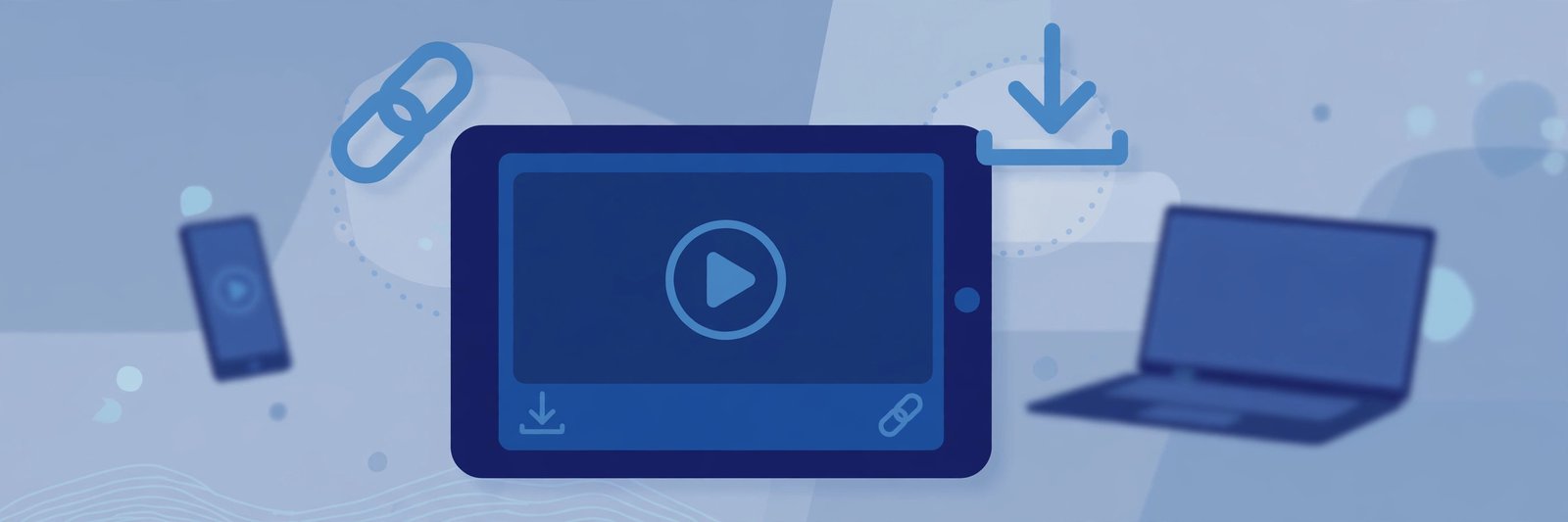
A tablet sits in a sweet spot that neither a phone nor a laptop quite matches. The screen is big enough to enjoy a movie properly, the device is light enough to hold on the sofa, and you do not need to sit at a desk. That is exactly why so many people want to play TeraBox videos on a tablet — and why it is frustrating when a shared link opens a page that asks for an app install instead of just playing the video.
The good news is that you do not need the TeraBox app on your tablet at all. With a browser-based player like FilesZero's TeraBox player, you can paste a shared link and watch it straight away on an iPad, a Samsung Galaxy Tab, a Lenovo tablet, or any other Android tablet. The player sits at the top of the page, so you can start watching within seconds of opening the link.
This guide explains how tablet playback works, how to get the best picture on a bigger screen, and how to fix the small problems that sometimes appear on tablets.
Why a Tablet Is Great for TeraBox Videos
On a phone, a shared movie or lecture can feel cramped. On a laptop, you need a table and a charger nearby. A tablet gives you the middle ground: a screen of 10 or 11 inches, speakers that are usually better than a phone's, and a battery that lasts through a long video.
Tablets are also the device families tend to share. One tablet on the kitchen counter or in the living room can play a video for everyone in the room, without anyone having to install anything or sign in to a new account. That makes browser playback especially useful — there is nothing to install, nothing to update, and no storage taken up by another app.
For students, a tablet is often the main study screen. Lecture recordings, recorded classes, and tutorial videos shared through TeraBox links play comfortably on a tablet, and you can pause, rewind, and take notes alongside the video.
How to Play a TeraBox Video on Your Tablet
Playing a shared video on a tablet takes less than a minute. The steps are the same on iPad and Android tablets.
Step 1: Copy the shared link
Ask the sender for the TeraBox link, or copy it from your message, email, or chat. The link will point to terabox.com or one of its mirror domains, such as 1024terabox.com, mirrobox.com, nephobox.com, freeterabox.com, or another terabox.* mirror. All of these work in the player.
Step 2: Open the player in your tablet's browser
Open Safari on an iPad, or Chrome on an Android tablet, and go to the FilesZero TeraBox player. The player box sits at the top of the page, so you do not need to scroll to find it.
Step 3: Paste the link and press play
Paste the link into the player box and start playback. The video should begin streaming in your browser, in quality up to 1080p depending on the source file. If the original file was uploaded in lower quality, the player will show the best version available — it cannot add detail that was never in the file.
Step 4: Go fullscreen for the full experience
Tap the fullscreen button on the video for a proper big-screen view. On most tablets, rotating the device to landscape fills the screen nicely and hides the browser controls.
Getting the Best Picture on a Bigger Screen
A bigger screen shows flaws more clearly than a phone does, so a few settings are worth checking.
- Use a stable Wi-Fi connection. Tablets often sit further from the router than phones do. If playback stutters, move closer to the router or switch to the 5 GHz Wi-Fi network if your tablet supports it.
- Let the video buffer for a few seconds. Pausing briefly at the start lets the player build a buffer, which prevents interruptions later, especially on slower connections.
- Pick the right quality. On a 10-inch screen, 720p usually looks good and streams smoothly. On a larger, high-resolution tablet, 1080p looks sharper if your connection can handle it.
- Turn up brightness indoors, down outdoors. Tablet screens reflect glare in sunlight. Watching indoors, or shading the screen, makes a bigger difference than any setting.
- Use headphones or a small speaker. Tablet speakers are decent, but a pair of earphones or a Bluetooth speaker makes dialogue much clearer for films and lectures.
iPad vs Android Tablet: Any Difference?
For browser playback, very little. Safari on iPad and Chrome on Android tablets both handle online video well, and the FilesZero player works in both. There are two small differences worth knowing.
On iPad, Safari may ask you to confirm before playing media with sound on some sites. If a video starts muted, tap the volume or unmute control on the player. On Android tablets, Chrome usually plays with sound straight away, but battery-saver modes can pause background tabs — keep the player tab in the foreground while watching.
Downloading works a little differently too. If you want to keep a copy, use the FilesZero TeraBox downloader in the same browser, then save the file to your tablet. On iPad, downloaded videos land in the Files app; on Android tablets, they usually appear in the Downloads folder, ready to open in your video player app.
Tablet Playback Without Installing the App
Many shared-link pages push you toward installing an app before you can watch. That is annoying on a tablet that is shared with family, low on storage, or simply not yours to change. Browser playback avoids all of that: no install, no permissions, no account, and no app taking up space.
It also keeps things simple for guests. FilesZero is a free online TeraBox player and downloader. Guests can play up to 5 videos a day, and a free account raises that limit — but for a quick watch on a tablet, most people never need to think about limits at all.
If you share videos with others who use tablets, send them the player link along with the TeraBox link. One extra line in your message — "open this in your browser, no app needed" — saves them the usual round of install prompts.
Common Tablet Problems and Quick Fixes
- Video will not start: refresh the page, paste the link again, and check that the link itself is complete. A link cut short by a chat app will not resolve.
- Playback keeps pausing: this is usually the connection, not the tablet. Move closer to the router, close other streaming tabs, or drop to a lower quality for a smoother stream.
- Sound but no picture (or vice versa): refresh the page and try again. If it persists, try the other browser on your tablet — Chrome on iPad, or Samsung Internet or Firefox on Android.
- Fullscreen looks stretched: the video keeps its original aspect ratio. Black bars on the sides or top are normal for older or vertical videos, not a fault.
- Link says expired or removed: the file may have been deleted or its sharing link withdrawn by the owner. No player can recover a removed file — ask the sender to share it again.
Frequently Asked Questions
Can I watch TeraBox videos on a tablet without the app?
Yes. Open the FilesZero TeraBox player in your tablet's browser, paste the shared link, and press play. No app install is needed on iPad or Android tablets.
Does it work on both iPad and Android tablets?
Yes. Safari on iPad and Chrome (or another modern browser) on Android tablets both work. The steps are identical, and the player sits at the top of the page in both cases.
What video quality can I expect on a tablet?
Up to 1080p, depending on the quality of the original uploaded file. Most shared videos play smoothly at 720p or 1080p on a decent Wi-Fi connection.
Do I need an account to play videos on my tablet?
No. Guests can play up to 5 videos a day without an account. A free account raises the limit if you watch shared videos often.
Can I download a TeraBox video to my tablet instead of streaming?
Yes. Use the FilesZero TeraBox downloader in your tablet's browser, paste the same link, and save the file. On iPad it goes to the Files app; on Android it usually lands in Downloads.
Final Thoughts
A tablet is one of the best screens for shared videos — big enough to enjoy, portable enough to carry anywhere, and simple enough for the whole family. You do not need to install anything to use it that way. Paste the link into the player at the top of the FilesZero TeraBox player page, go fullscreen, and enjoy the video on the bigger screen. If you ever want to keep a copy for offline watching, the downloader is right there in the same browser, ready when you need it.