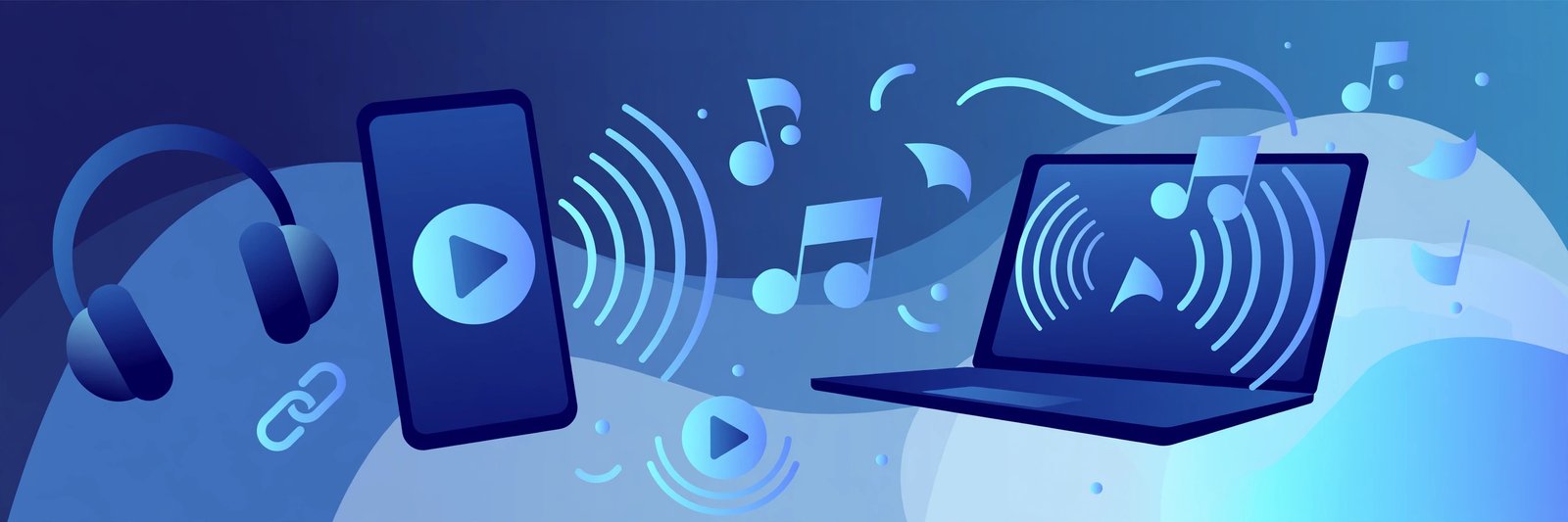
Most people think of TeraBox as a place for videos, but a shared TeraBox link can just as easily hold music — a single song, a full album, a podcast episode, or a recorded lecture. If someone sends you one of those links, you do not need to install an app or download a large file just to hear what is inside. With a browser-based player, you can press play and listen straight away.
This guide explains how TeraBox audio playback works, how to listen to music from a shared link, and what to do when a track will not play. The player sits at the top of this page, so you can try it with your own link as you read.
What Is TeraBox Audio Playback?
TeraBox audio playback simply means streaming an audio file that someone has shared through a TeraBox link, directly in your browser. The file stays in the sharer's cloud storage; your browser fetches the audio stream and plays it, much like a song on any music website.
That matters because audio is often shared the same way as video: a friend sends a song in a chat, a teacher shares a recorded lesson, or a creator sends a demo track. In each case, the receiver only wants to listen — not to manage cloud storage or learn a new app.
FilesZero is a free online TeraBox player and downloader. It works with common TeraBox mirror domains, including terabox.com, 1024terabox.com, mirrobox.com, nephobox.com, freeterabox.com, 1024tera.com, momerybox.com, teraboxapp.com, tibox.com, and teraboxlink.com, as well as other terabox.* mirrors.
How to Listen to Music From a Shared TeraBox Link
Listening takes less than a minute. You only need the link and a browser.
Step 1: Copy the shared link
Open the message, email, or post where the link was shared and copy the full link. A shortened or cut-off link will not load. If the link is password-protected, keep the password handy.
Step 2: Paste it into the player at the top of this page
Scroll to the top of this page, where you will find the "Play a TeraBox Video Now" player box. Paste your link there and submit it. The player will check the link and prepare the audio for streaming.
Step 3: Press play and adjust the sound
Once the track loads, press play. You can pause, skip forward or back, and change the volume from the player controls. On a phone, you can often lock the screen and keep listening, although exact background behaviour depends on your browser and device.
Step 4: Download it if you want to keep it
If you like the track and the sharer allows downloads, you can save a copy for offline listening. Head to the TeraBox downloader page, paste the same link, and follow the steps there. Only download audio you have permission to keep, and do not redistribute someone else's music without their consent.
Which Audio Formats Can You Play?
Most shared music arrives as MP3, which plays in virtually every modern browser. You may also come across AAC, WAV, FLAC, OGG, or M4A files, and support varies a little by browser:
- MP3 and AAC: supported almost everywhere, on phones, tablets, and computers.
- WAV: widely supported, but files are larger, so they load more slowly on weak connections.
- FLAC: excellent quality, but larger files and patchier support on some mobile browsers.
- OGG: well supported in Chrome and Firefox, less so in some versions of Safari.
- M4A: usually plays well, especially on Apple devices.
If a track will not play in one browser, try another before assuming the file is broken. Chrome, Firefox, Edge, and Safari each handle audio slightly differently, and switching browsers fixes many problems instantly.
Tips for Better TeraBox Music Listening
Playing audio is lighter work for your device and connection than playing video — there is no picture to decode — so a song will usually start faster and keep playing smoothly even on a slower connection. A few habits help even more:
- Wait a few seconds after pasting the link before pressing play, especially on a weak signal. Most failures happen while the player is still loading.
- Keep the tab open. Some browsers pause media when a tab is closed or the device goes to sleep.
- Use headphones for detail. Phone speakers hide a lot in music, and shared or home recordings often sound much better through earphones.
- Share whole folders for albums. A single folder link is easier than ten separate links, and the receiver can move through the tracks in order.
For longer listening sessions, downloading is often simplest. Once files are on your device, any music player can queue, shuffle, or repeat them. Guests on FilesZero can play up to 5 videos a day, and a free account raises the limit.
Common TeraBox Audio Problems and Fixes
If a track will not play, work through these checks in order:
- Check the link: re-copy it in full. A missing character at the end is the most common cause of a link that "does nothing."
- Try another browser: if Safari will not play a format, Chrome or Firefox often will, and vice versa.
- Refresh and retry: a temporary network hiccup can stop a stream from starting.
- Check whether the file is still shared: if the sharer deleted it or the link expired, ask them for a fresh link.
- Pause ad blockers or VPNs briefly: some extensions and VPN settings interfere with media streams.
Streaming in your browser is generally low-risk: you install nothing, and nothing is copied to your device unless you choose to download it. Still, only open links from people or sources you trust, and never enter your own cloud account password into an unfamiliar page — a genuine player only needs the shared link itself.
Frequently Asked Questions
Can I listen to TeraBox music without the app?
Yes. Paste the shared link into the player at the top of this page and press play. No app install is needed, and the track streams in your browser on phone, tablet, or computer.
Do I need a TeraBox account to play shared audio?
No. You do not need an account just to listen to a link someone shared with you. A free FilesZero account helps if you play a lot of shared media, because guests can play up to 5 videos a day and a free account raises that limit.
Can I download a song from a TeraBox link?
If the sharer allows downloads, yes. Use the TeraBox downloader, paste the same link, and save the file for offline listening. Only download audio you have permission to keep.
Why does my track stop halfway through?
That is usually a connection drop, a browser pausing a background tab, or a battery-saving setting on your phone. Refresh the page, keep the tab open, and try again on a stronger connection. If it stops at the same point every time, the source file itself may be incomplete.
Does TeraBox audio work on iPhone and Android?
Yes, both work in the browser with no app required. On iPhone, Safari and Chrome handle common formats such as MP3 and M4A well. On Android, Chrome and Firefox are reliable choices for most audio formats.
Final Thoughts
TeraBox audio playback is at its best when it stays simple: someone shares a link, you paste it into the player at the top of this page, and the music starts. You do not need a new app, a new account, or a large download just to hear a song, a lesson, or a demo track. Keep the tips in this guide in mind — copy the full link, pick a browser that supports the format, and download only what you have permission to keep — and shared audio becomes as easy as shared video. Try it now with a link of your own, and if you also need the video side of things, the TeraBox player and TeraBox downloader are ready whenever you need them.