Teaching today often means sharing video: a recorded lesson, a revision walkthrough, a practical demonstration, or a guest lecture that students need to watch again at home. The problem is rarely recording the video — it is getting a large file to every student without email bounces, storage limits, or asking everyone to install yet another app. That is where a browser-based TeraBox player makes a teacher's life noticeably easier.
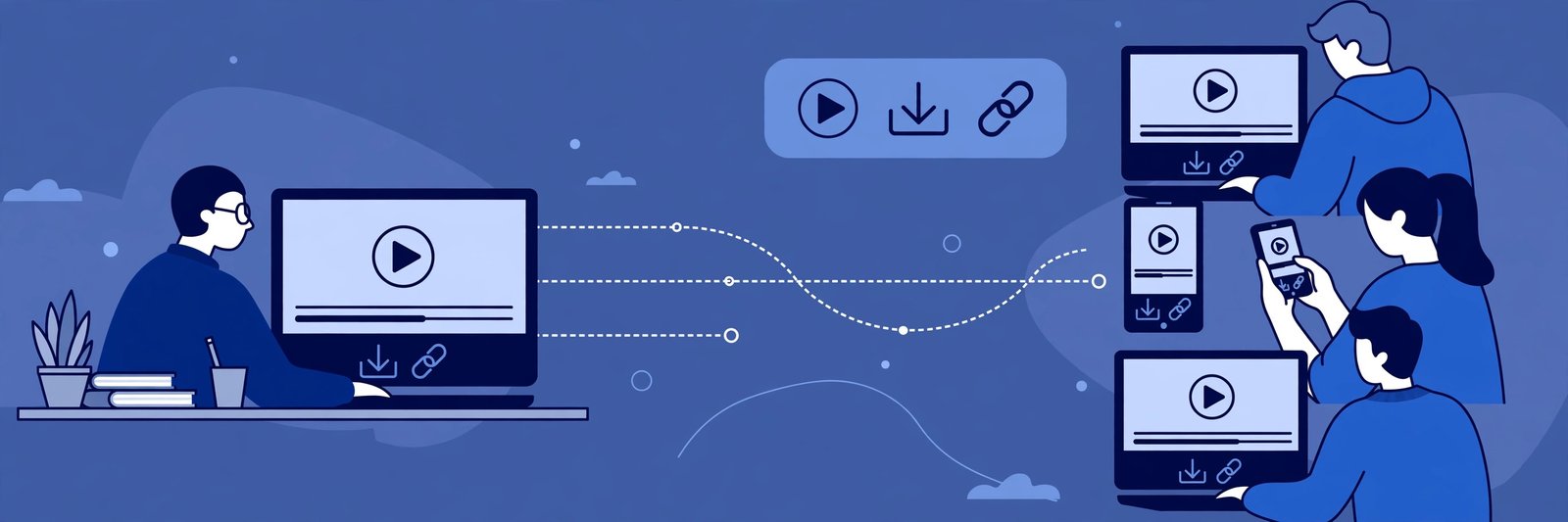
With FilesZero, you can share a class recording as a simple link. Students open it in their browser, press play, and watch — no app download, no account needed just to view. The player sits at the top of this page too, so you can try it right now with any TeraBox link: paste the link, and the video plays. For the full player, head to the TeraBox player, and if students want a copy for offline revision, the TeraBox downloader covers that as well.
Why Class Recordings Are Hard to Share
A single 45-minute lesson recorded in HD can easily run into hundreds of megabytes. Email attachments cap out far below that, messaging apps compress videos until whiteboard writing turns blurry, and school drives fill up fast when every teacher uploads every lesson. Students, meanwhile, use a mix of phones, shared family tablets, Chromebooks, and old laptops — so a solution that only works on one device or one app leaves someone out.
Shared cloud links solve the size problem, but only if the student on the other end can actually open them. A link that demands an install, a sign-up, or a specific operating system creates friction at exactly the moment a student is trying to revise. Browser playback removes that friction: one link, any modern browser, and the lesson starts playing.
Sharing a Class Recording With FilesZero: Step by Step
The workflow is short enough to fit into the last two minutes of a lesson.
Step 1: Upload the recording to TeraBox
Upload your recorded lesson to your TeraBox account from your phone or computer, just as you would any other file. Give it a clear name — subject, topic, and date, for example "Class 10 Science - Light Reflection - 3 Nov" — so students can find the right video later without asking you which link was which.
Step 2: Copy the share link
Generate a share link for the recording in TeraBox and copy it. If the recording is meant only for your class, keep the link within your class group or classroom channel rather than posting it publicly. A link shared privately stays a classroom resource; a link posted publicly can travel anywhere.
Step 3: Share the link with your students
Paste the link into your usual channel — a class WhatsApp group, Google Classroom post, school portal notice, or email. Add one line telling students they can watch it in the browser without installing anything. That single sentence prevents a wave of "which app do I need?" messages.
Step 4: Students play it in the browser
Students open the link, paste it into the player at the top of this page or on the TeraBox player page, and watch. Playback supports qualities up to 1080p depending on the source file, so whiteboard text and slides stay readable on a decent connection. On a slow connection, a lower quality still keeps the audio clear, which is what matters most for a spoken explanation.
Practical Tips for Teacher-Friendly Recordings
- Keep lessons in chapters: A 15-minute concept video is easier to rewatch than a single 90-minute file. If a lesson runs long, split it into two or three parts and share them as a numbered set.
- Say the topic out loud at the start: Students searching their chat history for "yesterday's physics video" will find it faster if the first ten seconds name the topic — and so will you, months later.
- Share slides alongside the video: A short PDF of the key diagrams or formulas, shared with the same message, turns passive watching into active revision.
- Test the link yourself first: Open your own share link in a private browser window before sending it to the class. If it plays there, it will play for your students.
- Set a watch-by date, not a deadline panic: Tell students when the video supports the next test or homework, so revision happens in time rather than the night before.
What About Students Without Much Storage or Data?
Not every student has a phone with free space or a fast connection, and browser playback helps on both fronts. Watching online means nothing needs to be downloaded or stored on the student's device, which matters on a shared family phone with little free space. Guests can play up to 5 videos per day on FilesZero, and a free account raises that limit — enough for a day's set of class recordings either way.
For students on slow internet, the honest advice is to watch at a lower quality or during off-peak hours, and to download only the videos they truly need for offline revision using the TeraBox downloader. A downloaded copy watched twice costs less data than streaming the same lesson three times.
Privacy: Keeping Class Videos in the Classroom
Class recordings sometimes show students' faces, names, or voices, so treat share links with care. Share them only in closed class groups, avoid posting them on public pages or open social feeds, and check your TeraBox sharing settings if a recording should no longer be available — for example, after a term ends. If a recording includes a student who should not appear on video, edit that section out or record a screen-only version before sharing.
Supported mirror domains include terabox.com, 1024terabox.com, mirrobox.com, nephobox.com, freeterabox.com, 1024tera.com, momerybox.com, teraboxapp.com, tibox.com, teraboxlink.com and the other terabox.* mirrors, so a link shared from any of these should open in the player the same way.
Frequently Asked Questions
Do students need the TeraBox app to watch my class recording?
No. With FilesZero, students paste your TeraBox link into the browser player and watch directly. No app install and no account are needed just to play a shared video.
Can I share a whole folder of lessons at once?
Yes — TeraBox lets you share a folder link, and students can open the individual recordings from it. For a full term's worth of lessons, one folder link per subject keeps things tidy.
Will the video quality be good enough to read the whiteboard?
Playback supports up to 1080p depending on the source file, so a recording made in HD will stay readable. Record in good light, keep the camera steady, and write large — those two habits matter more than any player setting.
What if a student says the link does not open?
Ask them to open the link in a different browser first, then check whether the link itself is still active in your TeraBox account. Expired or removed links stop playing, and a fresh share link fixes that in a minute.
Is FilesZero free for teachers and students?
Yes, FilesZero is a free online TeraBox player and downloader. Guests can play up to 5 videos per day, and a free account raises the limit — there is no charge to watch a shared class recording.
Final Thoughts
Good teaching deserves a sharing method that gets out of the way. A browser player that opens any TeraBox link, plays it in HD where the connection allows, and asks nothing of the student is exactly that: the lesson reaches the whole class, on whatever device each student has, without a new app or a new account standing in between. Record the lesson, share the link, and let students press play — revision takes care of itself from there.