Downloaded a TeraBox video and now want to watch it without an internet connection? You are in the right place. Whether you are travelling, stuck on a slow connection, or simply want to save mobile data, watching your downloaded videos offline is one of the most practical things you can do with a shared TeraBox file. The good news is that once a video is saved on your device, you do not need the TeraBox app, a browser, or an active connection to enjoy it.
In this guide, you will learn how to watch downloaded TeraBox videos offline on your phone and computer, which players work best, how to fix the most common offline playback problems, and how to keep your downloads organised so you can find them later. If you still need to grab a file first, the TeraBox downloader on FilesZero can help, and if you would rather stream a shared link right now, the TeraBox player sits at the top of this page — just paste a link and press play.
What "Watching Offline" Really Means
Watching offline simply means playing a video file that already lives on your device, instead of streaming it from the internet. When you download a TeraBox video, the file is copied to your phone, tablet, or computer. After that, playback depends only on your device and its media player — not on your Wi-Fi signal, your mobile data, or the original shared link.
That distinction matters: a downloaded file keeps playing on a plane or in an area with patchy coverage, and rewatching it costs no extra data.
How to Watch Downloaded TeraBox Videos Offline on Your Phone
Most phones can play downloaded videos straight out of the box. The steps are slightly different on Android and iPhone, but the idea is the same: find the file, open it with a player, and enjoy.
On Android
- Open your Files app (or the Downloads folder) and look for the video you saved.
- Tap the file once. Android will usually open it in your default video player, such as Google Photos or your phone maker's own player.
- If the file does not open, or the sound and picture are out of sync, install a free player such as VLC for Android and open the file from inside that app.
- For a bigger screen experience, you can cast the offline file to a TV with Chromecast, as long as your phone and TV are on the same Wi-Fi network at that moment — the video itself still plays from your phone, not from the internet.
On iPhone and iPad
- Downloaded videos usually land in the Files app, under Downloads or On My iPhone, unless you chose a different location.
- Open the Files app, find the video, and tap it to play it in the built-in player.
- If you want the video in your photo library, use the Share button and choose "Save Video". After that, it appears in the Photos app like any other clip.
- For formats your iPhone does not play natively, VLC for iOS is a reliable free option that handles almost every common video format.
How to Watch Downloaded TeraBox Videos Offline on Your Computer
On a PC or Mac, offline playback is even simpler, because desktop players support more formats and give you more control over subtitles and playback speed.
- Find the file in your Downloads folder (or wherever you saved it) and double-click it. Windows Media Player, QuickTime, or your default player will open it.
- For the widest format support, VLC Media Player is free on both Windows and macOS and plays MP4, MKV, and most other formats without extra codecs.
- Use keyboard shortcuts to make viewing comfortable: spacebar to pause and resume, the arrow keys to skip forward or back, and F for fullscreen.
- If you watch with subtitles, keep the subtitle file in the same folder as the video and give it the same file name (apart from the extension). Most players will then load it automatically.
Best Video Formats for Offline Playback
Most TeraBox videos you download are MP4 files, which is good news: MP4 plays on virtually every phone, tablet, computer, and smart TV. If you ever receive an MKV file, it will still play fine in VLC on desktop and Android, but some built-in phone players may refuse it. In that case, either open it in VLC or convert it to MP4 with a free converter before transferring it to your phone.
FilesZero supports playback and downloads in qualities up to 1080p, depending on the source file. A 1080p file looks sharper on a large screen but takes more storage, so if space is tight, a 720p version is often the better trade-off.
Organise Your Downloads So You Can Find Them Later
Offline viewing is only convenient if you can find the video you want:
- Create a dedicated folder, such as "TeraBox Downloads", instead of letting everything pile up in Downloads.
- Rename files with clear names — for example, "Birthday Trip 2026.mp4" instead of a string of numbers and letters.
- Sort longer collections into subfolders by topic: lectures, movies, family videos, and so on.
- Back up videos you care about to a second place, such as an external drive or another cloud account, so a lost phone does not mean lost memories.
- Delete files you no longer need. Large videos fill storage quickly, and a full phone slows down everything else.
Offline Playback Problems and How to Fix Them
Even a fully downloaded file can occasionally refuse to play:
- The file will not open at all: the download may have been interrupted. Download the file again and check that its size looks reasonable before playing it.
- Only audio, no picture (or vice versa): your player may not support the file's codec. Open it in VLC, which covers far more codecs than most built-in players.
- Playback stutters: this is rarely a network issue once a file is offline. Close other apps, free up some storage, or try a lighter player.
- The video looks blurry: the source file itself may be low resolution. Re-downloading will not add detail that was never there, so choose the highest quality available from the source when you first save it.
- Subtitles are missing: make sure the subtitle file sits in the same folder with a matching name, and turn subtitles on in your player's menu.
Frequently Asked Questions
Can I watch a downloaded TeraBox video without any internet at all?
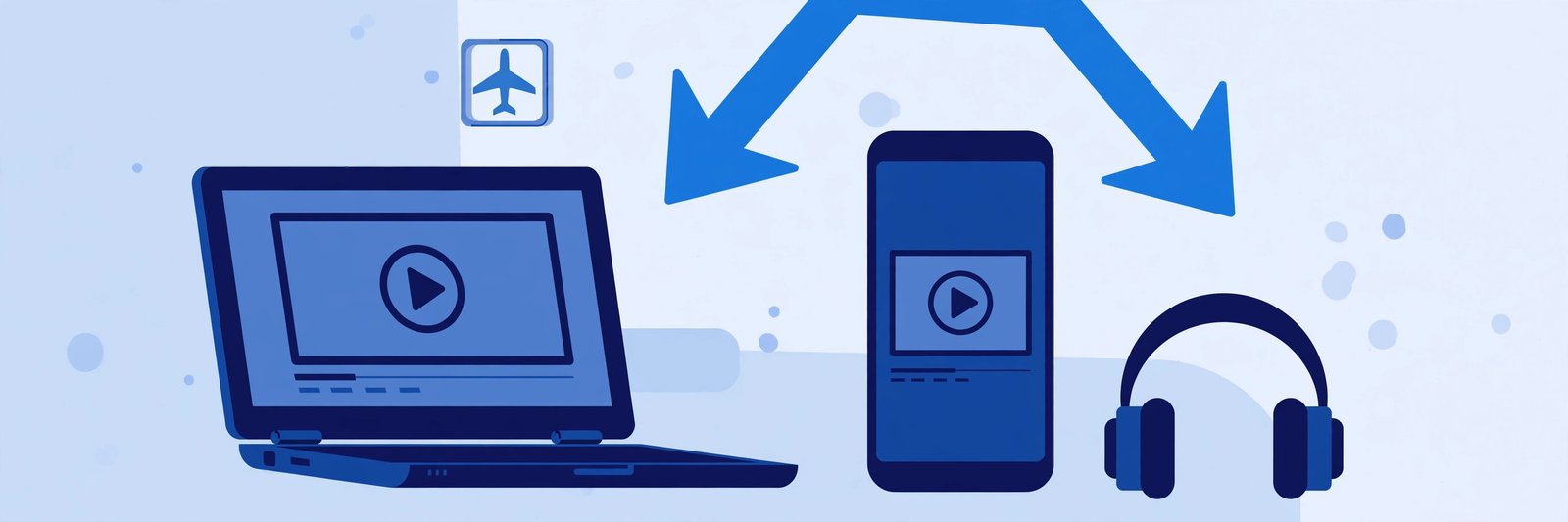
Yes. Once the video file is saved on your device, playback is completely local. You can switch on flight mode and the video will still play, because your player reads the file from your storage, not from the internet.
Do I need the TeraBox app to watch a downloaded video?
No. A downloaded video is an ordinary video file. Any capable media player on your phone or computer — the built-in player, VLC, or a similar app — can play it, with no TeraBox account or app required.
Why does my downloaded video not appear in my gallery?
On Android, some downloads stay in the Downloads folder and do not show in the gallery until you move them. On iPhone, a file saved through the browser lives in the Files app until you use the Share button and choose "Save Video". Moving or saving the file into your photos folder fixes this in both cases.
Does watching offline use mobile data?
No. Offline playback uses no data at all, since nothing is streamed or downloaded during playback. Data is only used once, at the moment you originally download the file.
Can I watch downloaded TeraBox videos on my TV?
Yes. You can cast an offline file from your phone to a Chromecast-enabled TV, connect your laptop to the TV with an HDMI cable, or copy the file to a USB drive and plug it into the TV. The simplest method depends on what equipment you already have at home.
Final Thoughts
Watching downloaded TeraBox videos offline is straightforward once you know where your files live and which player to use. Save your videos before you travel, keep them in a tidy folder with clear names, and use a versatile player like VLC for anything your built-in player struggles with. That way, your favourite videos are always ready — no signal, no buffering, and no data worries. And whenever you need to stream a new shared link instead, remember the player at the top of this page is ready whenever you are.