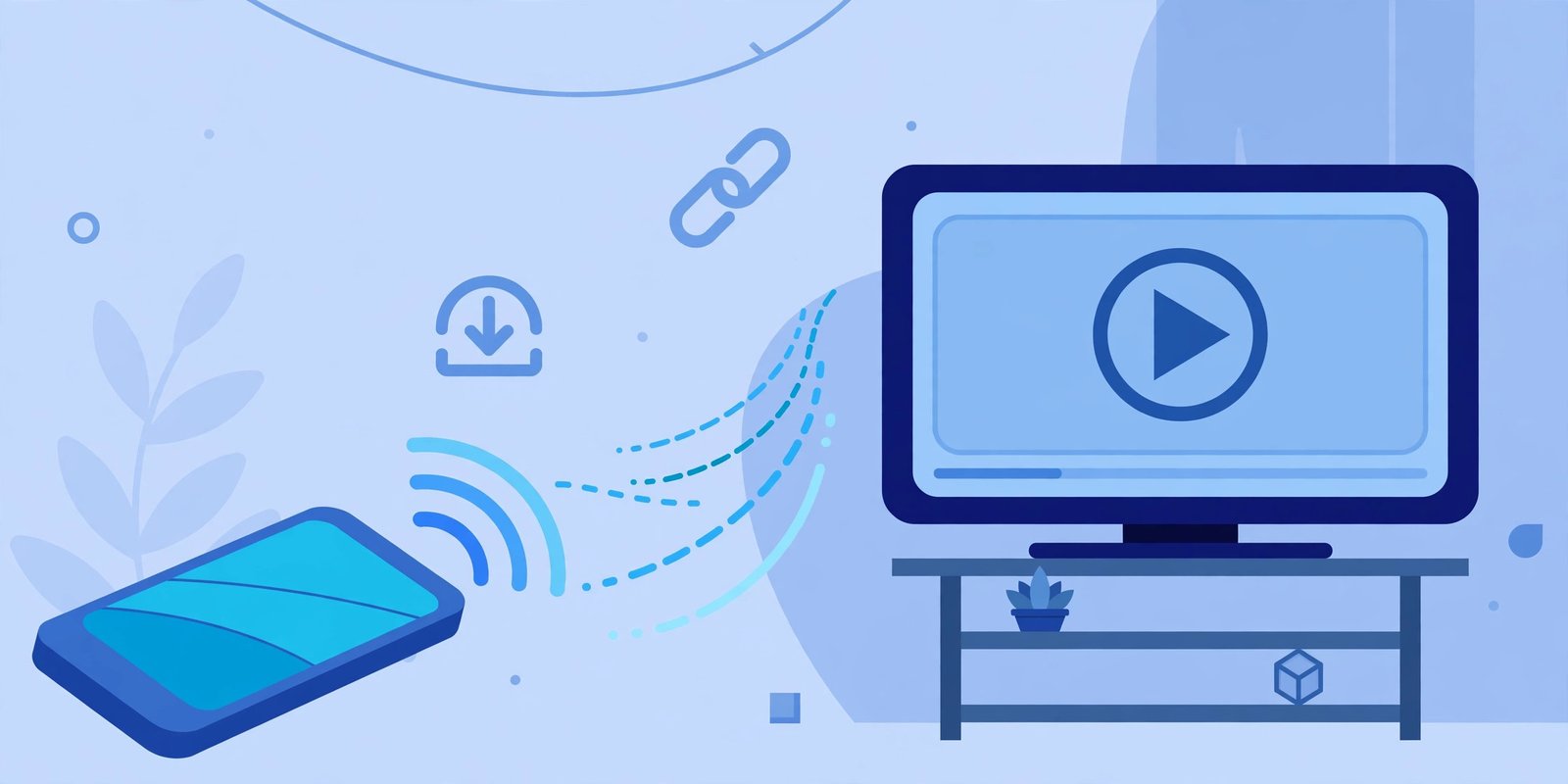
Watching a shared video on a small phone screen is fine for a quick look, but a film, a family recording, or a long lecture deserves a bigger display. Casting lets you send a TeraBox video from your phone or laptop to your television with Chromecast, so everyone in the room can watch together — without installing the TeraBox app on the TV itself.
The good news is that you do not need a complicated setup. If you can play a video in your browser, you can usually cast it. In this guide, we explain how to cast TeraBox videos to your TV with Chromecast, which method works best on each device, and how to fix the problems that most often break a cast.
And remember, the player sits at the top of this page: the Play a TeraBox Video Now box lets you paste a shared link and start playback right here on FilesZero before you send it to the big screen.
What You Need Before You Cast
Casting is simple, but it works only when a few basics are in place. Check these first and you will avoid most failures:
- A Chromecast device or a TV with Chromecast built in. This includes a Chromecast dongle, Chromecast with Google TV, or many Android TVs that support Google Cast.
- The same Wi-Fi network. Your phone or laptop and the TV must be connected to the same Wi-Fi network. Casting does not work across different networks or mobile hotspots that isolate devices.
- A Chrome browser or a Cast-enabled app. On a laptop, Google Chrome has Cast built in. On Android, the Cast button appears in Chrome and in many media apps.
- A valid shared TeraBox link. You need a link shared by the file owner, for example from terabox.com, 1024terabox.com, or one of the other mirror domains. If the link has expired or the file was removed, casting cannot bring it back.
If you are new to the player itself, start with our TeraBox player guide, and if you want a copy of the file as well, see the TeraBox downloader page.
Method 1: Cast From Chrome on a Laptop or PC
This is the most reliable method, because Chrome can mirror a whole browser tab to your TV, including the video playing inside it.
Step 1: Open the video in Chrome
Open Google Chrome on your laptop, paste your TeraBox link into the TeraBox player on FilesZero, and start playing the video. Let it play for a few seconds so you know it is working before you cast.
Step 2: Open the Cast menu
Click the three-dot menu in the top-right corner of Chrome, then choose Cast. Chrome will scan for Cast devices on your Wi-Fi network and list your TV or Chromecast.
Step 3: Choose what to cast
Click your TV name, then click Sources and choose Cast tab if you want just the browser tab, or Cast desktop if you want the whole screen. For video playback, Cast tab usually gives smoother results and keeps your other windows private.
Step 4: Watch on the big screen
The video should now appear on your TV. Keep the Chrome tab open — closing it or putting the laptop to sleep will stop the cast. Use the player controls in the tab to pause, seek, or change the volume.
Method 2: Cast From an Android Phone
Android phones support Cast directly from Chrome, which makes this the easiest phone method.
Step 1: Connect to the same Wi-Fi
Make sure your phone and your TV are on the same Wi-Fi network. If your phone is on mobile data, casting will not find the TV.
Step 2: Play the video in Chrome
Open Chrome on your phone, go to FilesZero, paste the link into the player at the top of the page, and start playback.
Step 3: Tap Cast
Tap the three-dot menu in Chrome and choose Cast, then select your TV. The tab will mirror to the television. You can lock your phone screen in some cases, but keeping Chrome in the foreground gives the most stable cast.
Method 3: Cast With Chromecast With Google TV
If you have Chromecast with Google TV, you have a second option: open the browser on the TV itself.
- From the Google TV home screen, open Chrome or another TV browser.
- Go to FilesZero, paste the shared link into the player at the top of the page, and press play.
- The video plays directly on the TV, with no phone or laptop needed as a middleman.
Getting the Best Picture and Sound
FilesZero supports playback up to 1080p depending on the source file — a low-resolution source will not become HD on a TV.
- Use a strong Wi-Fi signal. Sit closer to the router, or use a 5 GHz network if your TV and router support it, for smoother playback.
- Close heavy apps. Large downloads or video calls on the same network compete for bandwidth and can cause buffering.
- Pick the right quality. If playback stutters, try a lower quality first. A smooth 720p stream looks better than a 1080p stream that keeps pausing.
- Check the audio output. If sound comes from the phone instead of the TV, the cast may not have connected fully — stop the cast and start it again, choosing Cast tab rather than a partial mirror.
Common Casting Problems and How to Fix Them
Your TV does not appear in the Cast list
Confirm both devices are on the same Wi-Fi network and the TV is awake. Restarting the Chromecast often fixes discovery, and turn off any VPN, which can hide your device from the local network.
The video plays on the phone but not on the TV
Stop the cast, reload the player page, start the video again, and cast with Cast tab selected.
Playback keeps buffering on the TV
Buffering during a cast is almost always a network issue. Move closer to the router, pause other downloads, or lower the quality.
Sound and picture are out of sync
Stop and restart the cast; a short pause and resume can also resync audio.
FilesZero Limits to Keep in Mind
FilesZero is a free online TeraBox player and downloader. Guests can play up to 5 videos per day, and a free account raises that limit. That limit applies to playback itself, so a long casting session still counts as playing the video — plan accordingly if you want to watch several shared files in one evening.
Supported mirror domains include terabox.com, 1024terabox.com, mirrobox.com, nephobox.com, freeterabox.com, 1024tera.com, momerybox.com, teraboxapp.com, tibox.com, teraboxlink.com and the other terabox.* mirrors, so most shared links you receive should work in the player before you cast them.
Frequently Asked Questions
Can I cast a TeraBox video without installing the TeraBox app?
Yes. That is the whole point of this method. You play the shared link in your browser on FilesZero and cast the browser tab to your TV. No TeraBox app is needed on your phone, laptop, or TV.
Do I need a Chromecast dongle, or will my smart TV work?
Many Android TVs and Google TV models have Chromecast built in and appear in the Cast list without a dongle. If your TV does not support Google Cast, a Chromecast dongle or Chromecast with Google TV adds that support.
Why does casting stop when I close the browser tab?
Tab casting mirrors that specific tab. Closing the tab, closing Chrome, or letting the laptop sleep ends the mirror. Keep the tab open for the whole video.
Can I cast from an iPhone?
iPhones do not offer the same Chrome tab casting as Android. The easiest options are to cast from a laptop running Chrome, or to play the video directly in a browser on Chromecast with Google TV.
Does casting use extra data or count extra plays?
Casting streams the video once over your Wi-Fi network, so it does not double-count the play, but it does use your internet connection for the full stream. A long HD video will use more data than a short clip, so a stable Wi-Fi connection matters more than a mobile data plan.
Final Thoughts
Casting a TeraBox video to your TV with Chromecast is a small setup for a big upgrade: a shared clip becomes a living-room watch. Start by playing the link in the player at the top of this page on FilesZero, make sure your casting device and TV share the same Wi-Fi, and use Chrome's Cast tab option for the smoothest result. If the cast stutters, check your network first — most problems are Wi-Fi problems, not link problems — and you will usually be watching on the big screen within a minute.